

Authenticator app login is an alternative to email OTP for signing in to your account. Instead of waiting for a one-time password to arrive in your inbox, you'll use an authenticator app or browser extension like 1Password, Authy, or Google Authenticator to generate a code each time you sign in. It's faster and works even when you don't have access to your email.
This guide walks you through setting it up, signing in with it, and what to do if you lose access to your authenticator app.
What you'll need
An authenticator app or browser extension installed on any of your devices. Some popular options:
1Password (Android / iOS / Desktop / Browser extension)
Authy (Android / iOS / Desktop)
Google Authenticator (Android / iOS)
Microsoft Authenticator (Android / iOS)
Setting up authenticator app login
Go to NeetoAuth by visiting this URL your-subdomain.neetoauth.com. For example, for spinkart subdomain URL will be spinkart.neetoauth.com
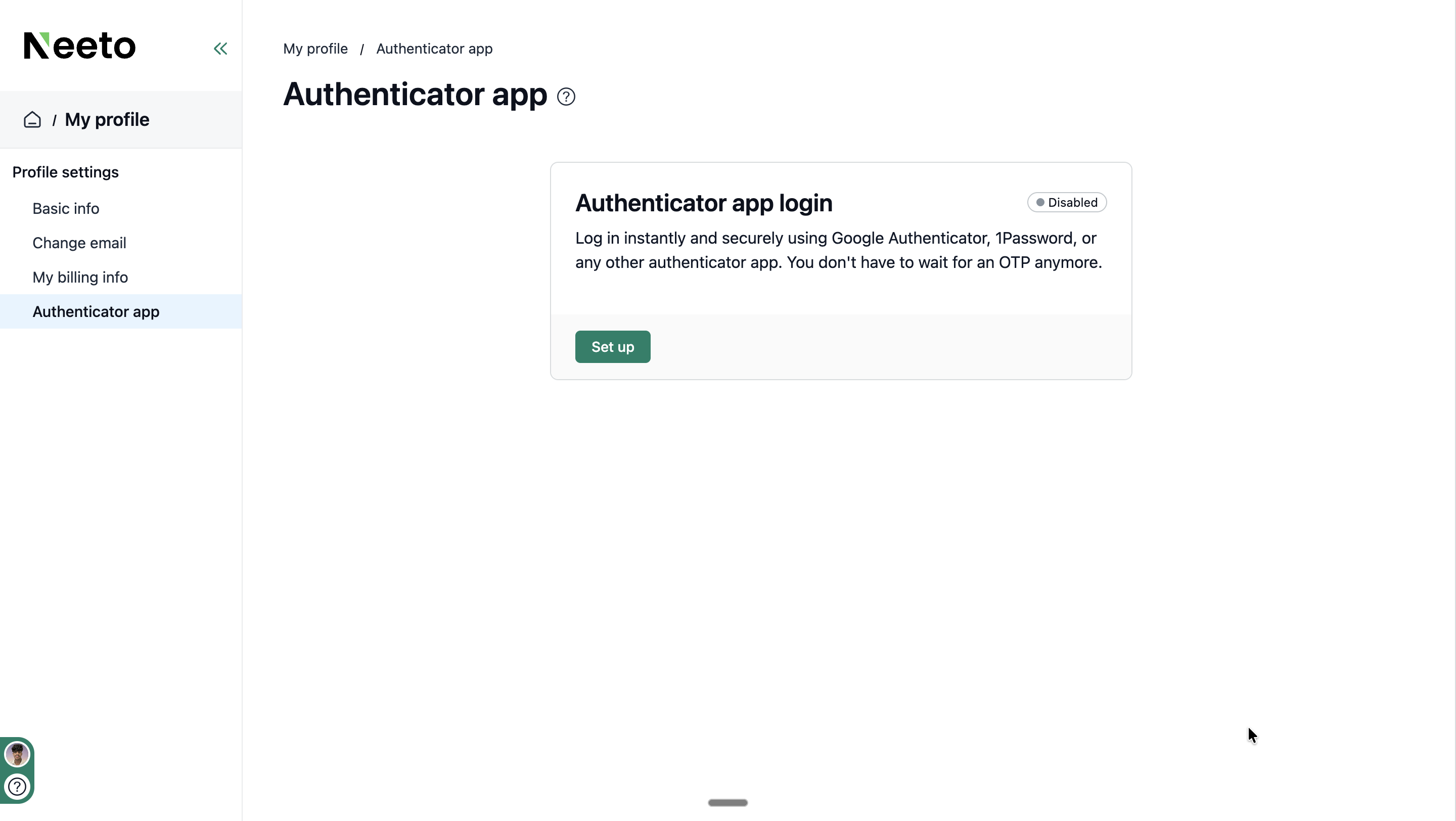
1. Go to My profile
Log in to your account and navigate to My profile → Authenticator app. Click on Setup.
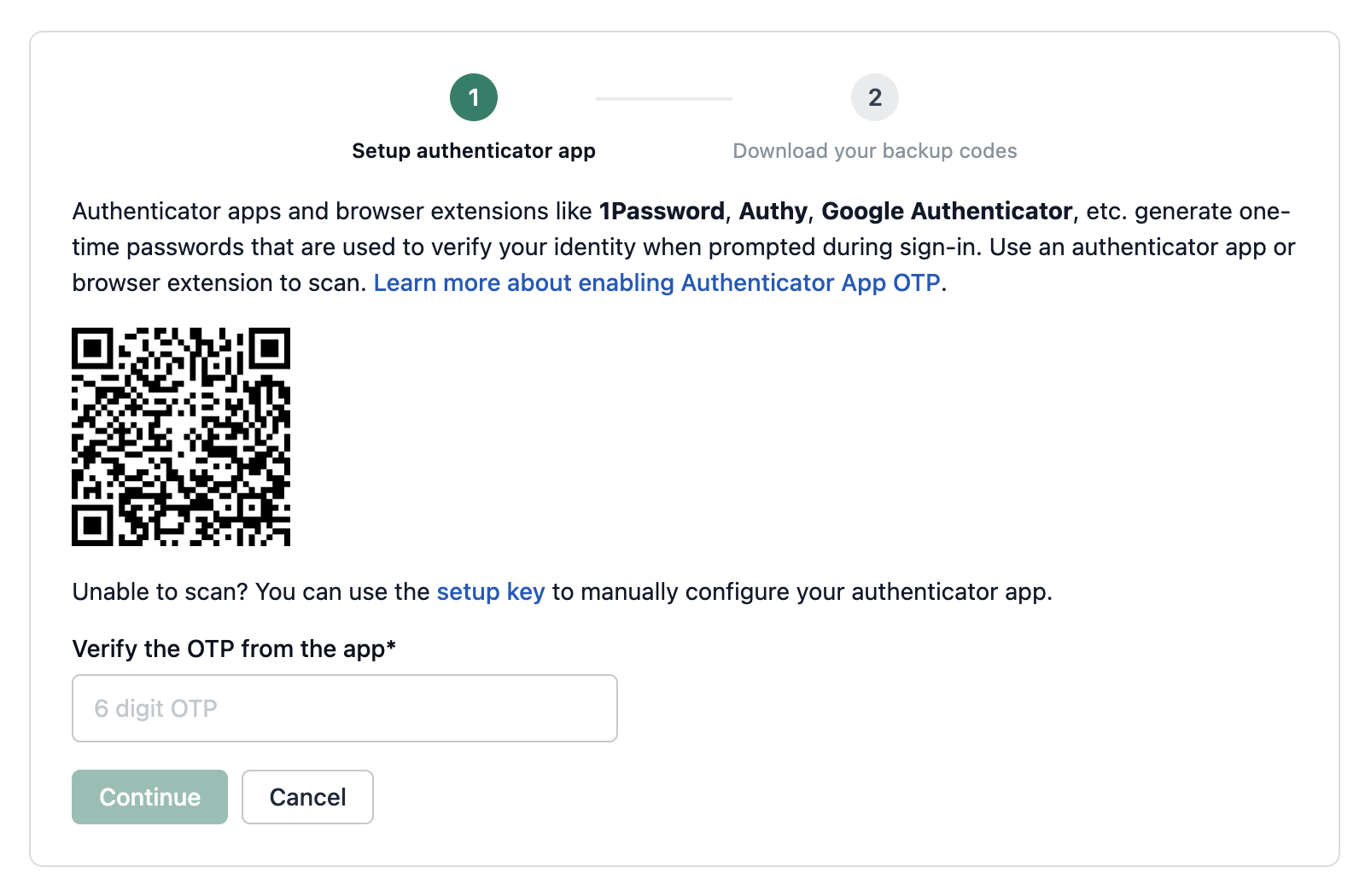
2. Scan the QR code
You need to complete these two steps:
Setup authenticator app
Save your backup codes
You can setup your authenticator app in two ways:
Scan the QR code. Open your authenticator app and use it to scan the QR code on screen.
Use the setup key. Click the "setup key" link below the QR code. A text code will appear that you can manually copy and enter into your authenticator app. This is useful if you're using a browser extension or a desktop app that can't scan QR codes.
3. Enter the verification code
Once your authenticator app scans the QR code (or you enter the setup key manually), it will start showing a 6-digit OTP that refreshes every 30 seconds.
Type this 6-digit OTP into the "Verify the OTP from the app" field and click Continue.
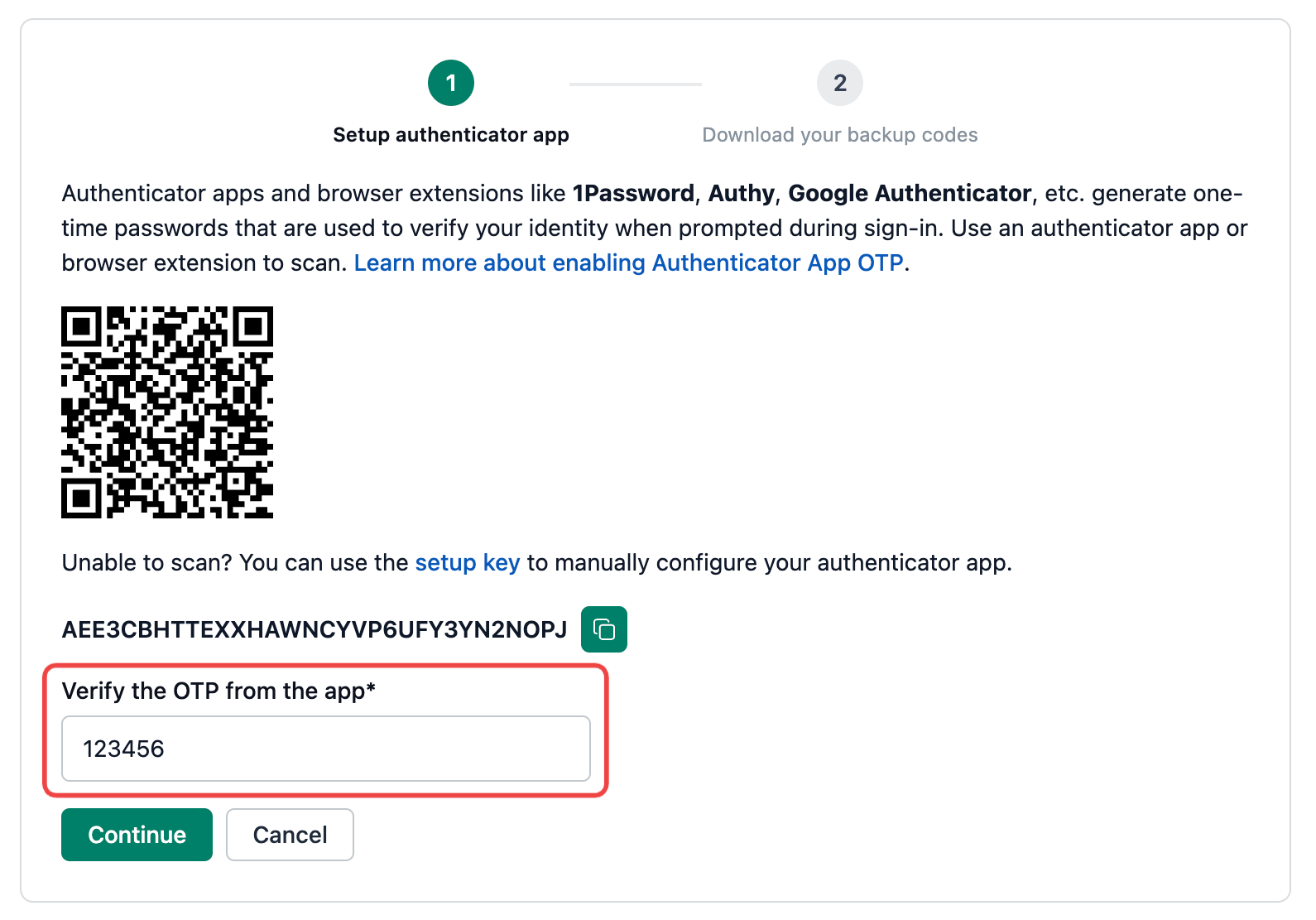
If the code doesn't work, make sure the time on your device is accurate. Authenticator apps rely on your device's clock being in sync.
4. Save your backup codes
After verifying your code, you'll see a set of 15 backup codes. These are emergency codes you can use to sign in if you ever lose access to your authenticator app.
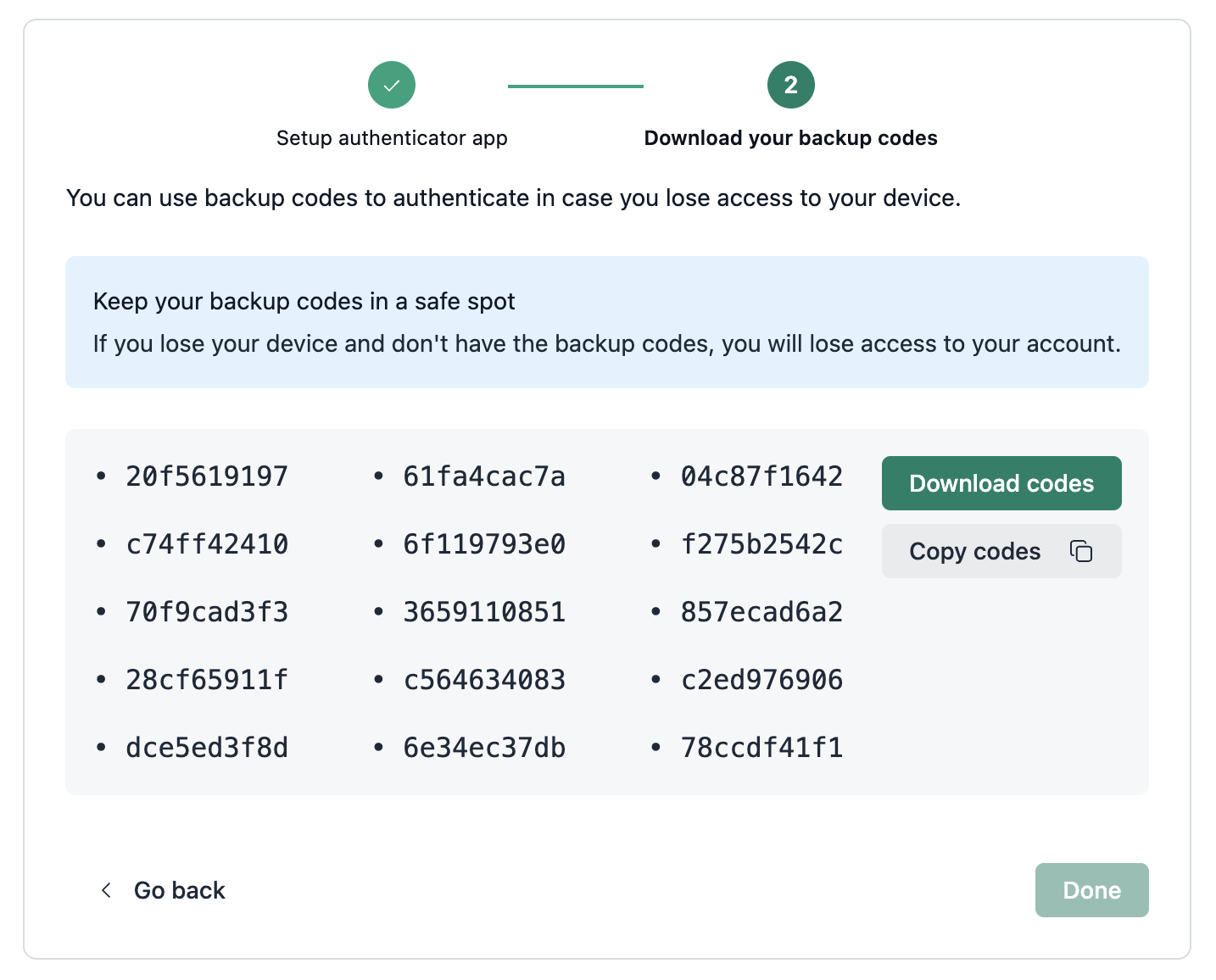
You'll see a warning that says:
Keep your backup codes in a safe spot. If you lose your device and don't have the backup codes, you will lose access to your account.
You must save these codes before you can finish setup. Use one of these options:
Click "Download codes" to save them as a text file to your computer.
Click "Copy codes" to copy them to your clipboard, then paste them somewhere safe (like a password manager or a printed sheet).
Once you've saved your codes, click Done to complete the setup.
That's it! Authenticator app login is now enabled on your account.
Signing in with your authenticator app
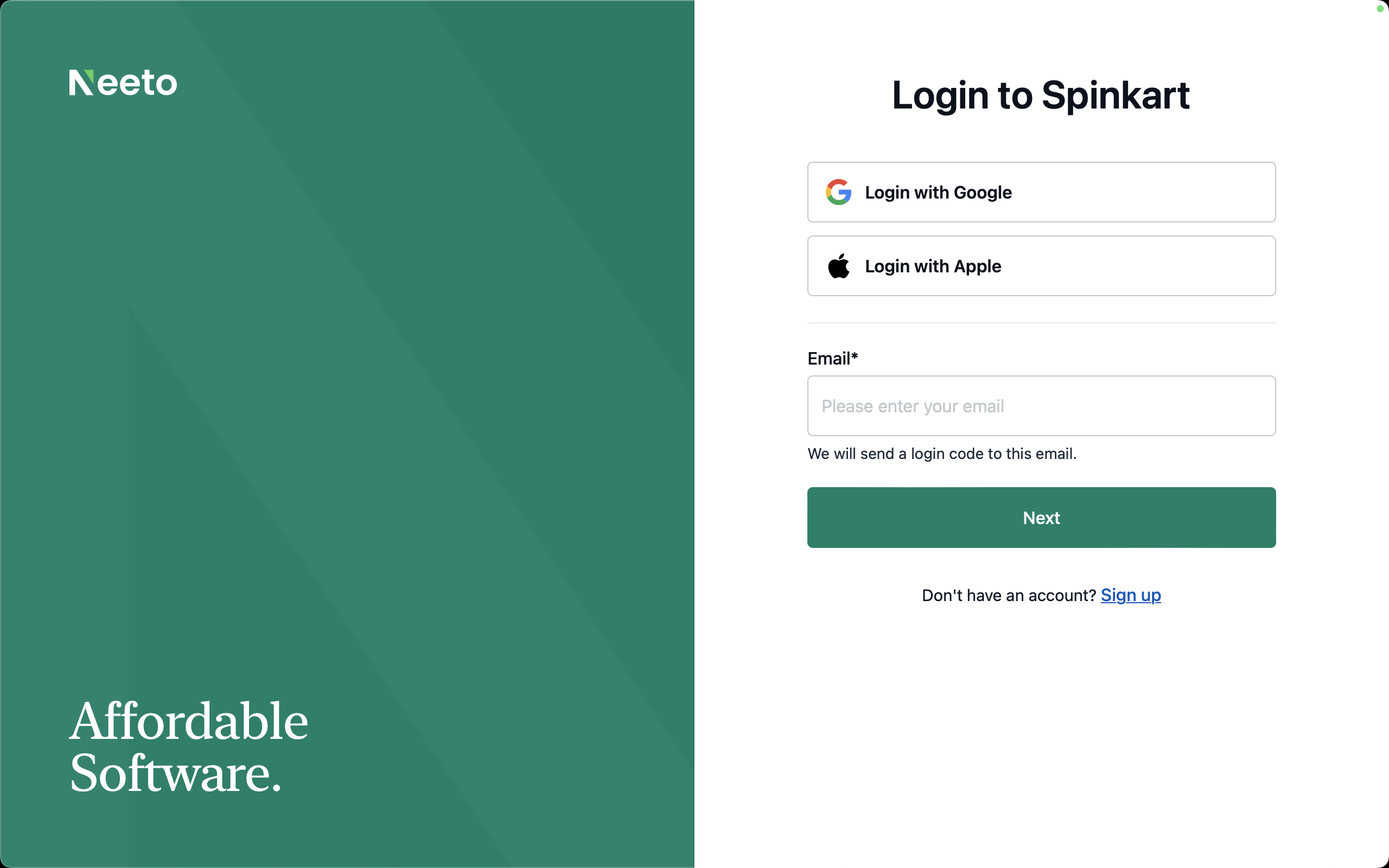
1. Enter your email
Go to the sign-in page and enter your email address as usual.
2. Enter the authenticator app OTP
Since you've set up authenticator app login, you'll now see a screen titled "Authenticator App OTP" with the message:
Enter the OTP from your authenticator app or browser extension below.
Open your authenticator app, find the entry for your account, and type the 6-digit OTP into the "Enter OTP" field. The OTP changes every 30 seconds, so use the current one.
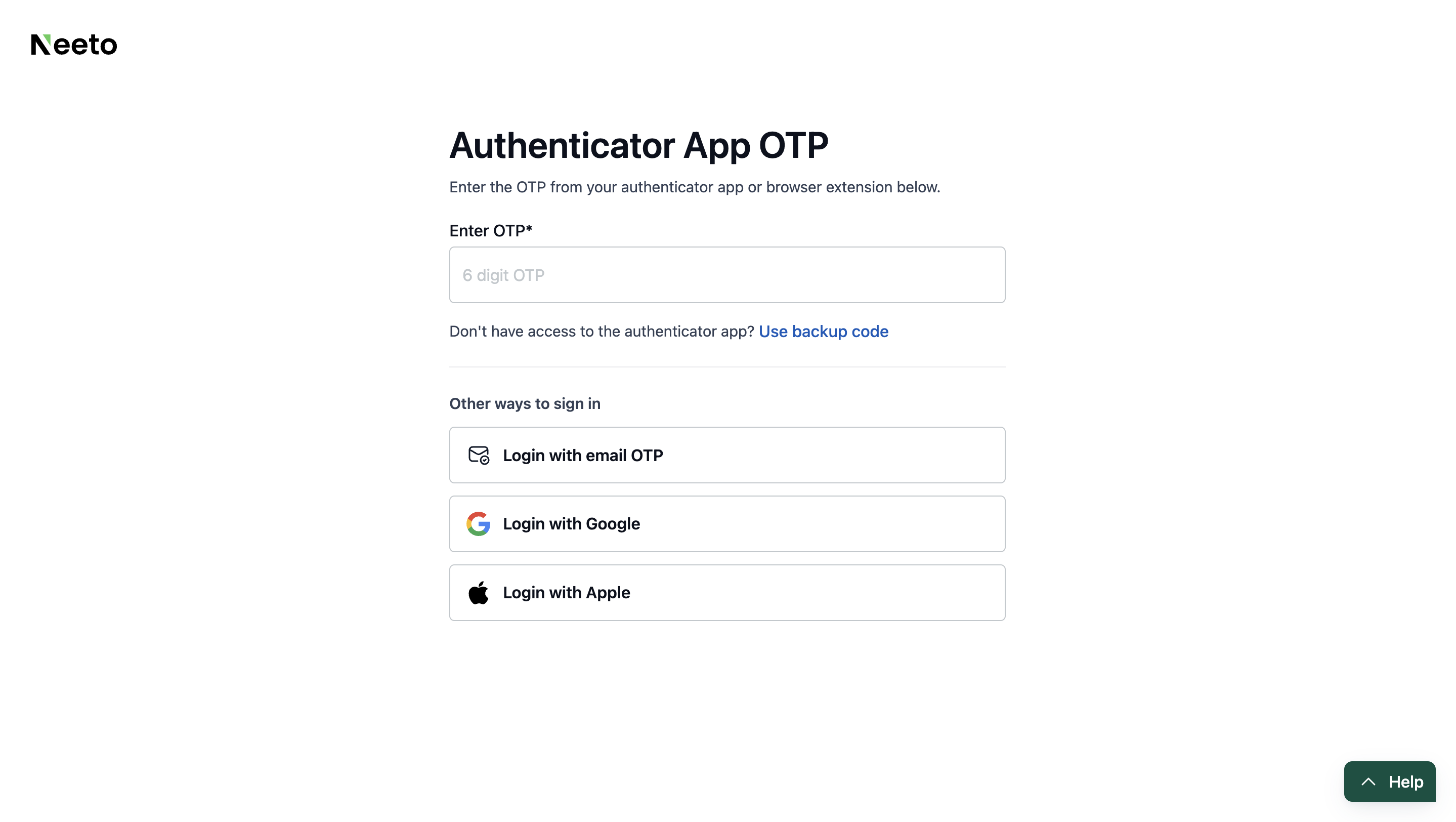
Once you enter the 6-digit OTP, you'll be signed in automatically.
Signing in with a backup code
If you can't access your authenticator app, you can use one of the backup codes you saved during setup.
1. Go to the backup code screen
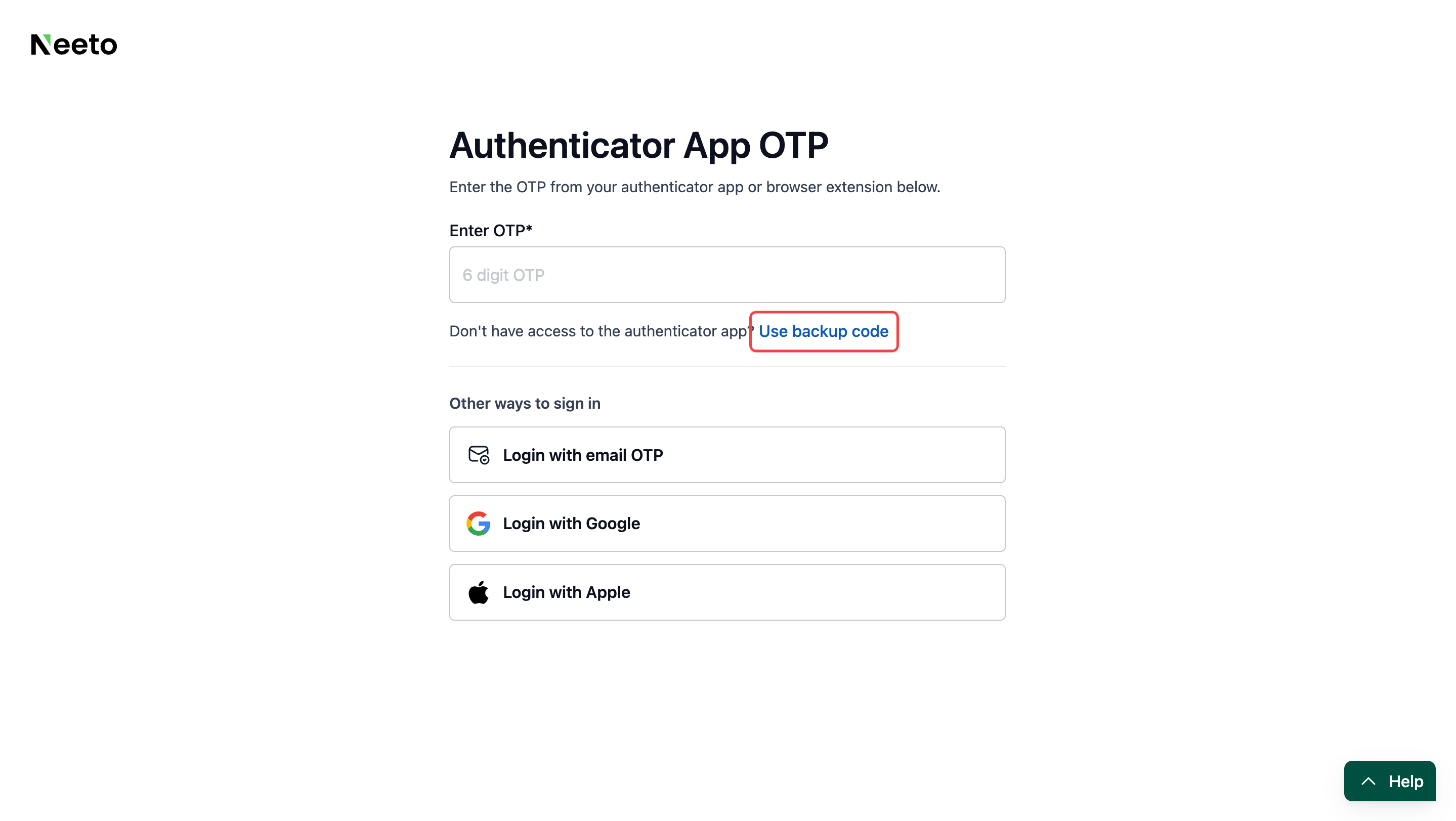
On the authenticator app login screen, look for the text:
Don't have access to the authenticator app? Use backup code
Click "Use backup code".
2. Enter a backup code
You'll see a screen that says:
Enter a backup code below. Each code can only be used once.
Type one of your saved backup codes into the "Enter backup code" field. Each code is 10 characters long (a mix of letters and numbers).
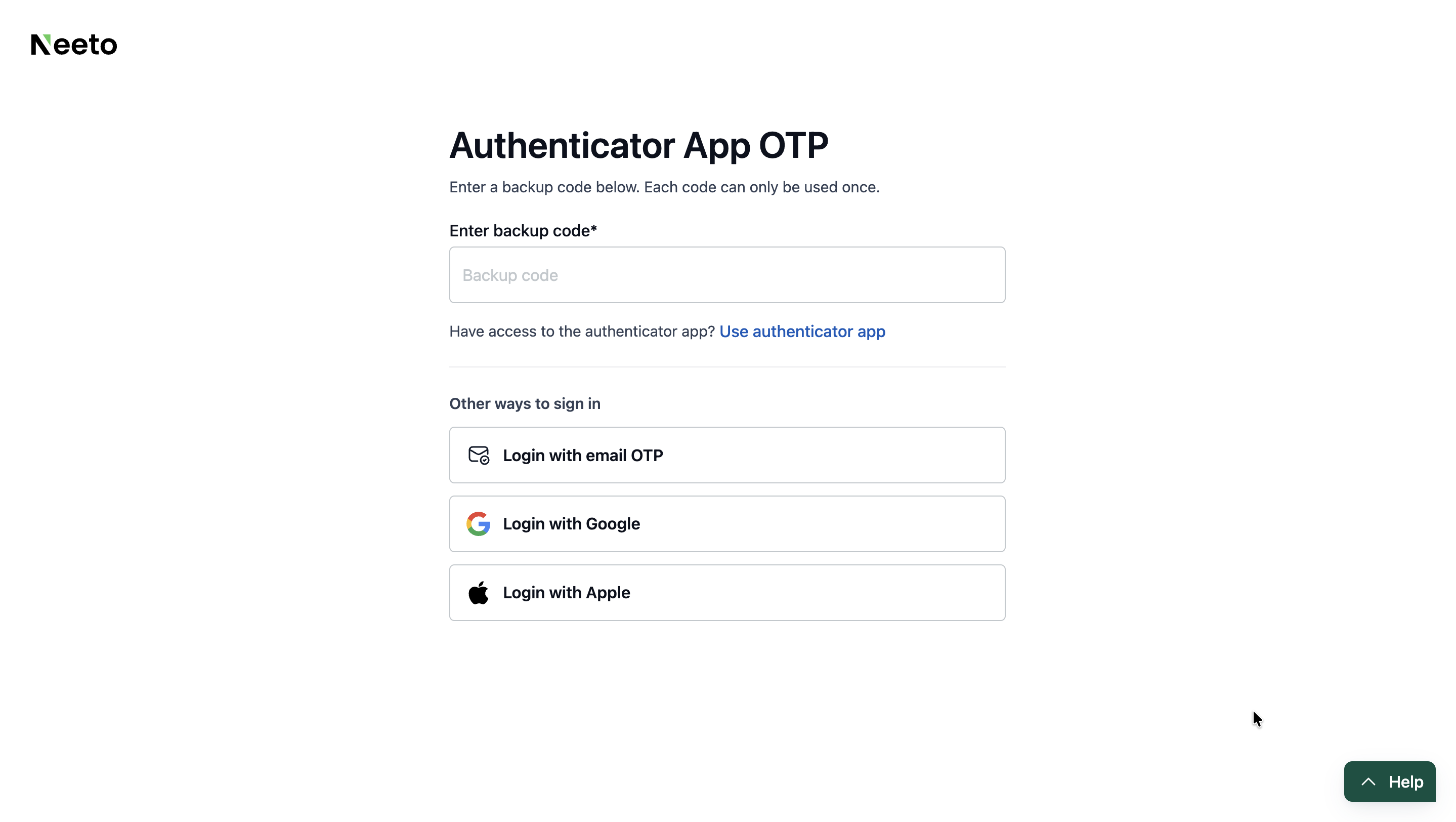
Once you enter the full code, you'll be signed in automatically.
Important: Each backup code can only be used once. After you use a code, it's gone for good. If you're running low on backup codes, set up your authenticator app again to get a fresh set of 15 codes.
Tips and troubleshooting
My authenticator app OTP isn't working.
Make sure the time on your device is set to automatic. Authenticator apps use your device's clock to generate codes, and even a small time difference can cause codes to fail.Can I switch to a different authenticator app?
Yes. Disable authenticator app login, then set it up again. You'll scan a new QR code with your new app and receive a fresh set of backup codes.Where should I keep my backup codes?
Store them somewhere secure and separate from the device running your authenticator app. Good options include a password manager, a locked note, or printed on paper kept in a safe place.I lost access to my authenticator app and don't have my backup codes.
Contact the Neeto support team to help you regain access to your account.