

A passkey lets you log in to NeetoAuth with your device's lock, such as your fingerprint, your face or your device PIN. You don't need to wait for an email code. Your passkey stays on your device, so nobody can steal it from a website or trick you into typing it somewhere else.
What you'll need
A computer or phone with a screen lock, such as Touch ID, Face ID, Windows Hello or a PIN.
An up-to-date browser, such as Chrome, Safari, Edge or Firefox.
Access to your email inbox. We send you a code once, when you add the passkey.
Setting up a passkey
Step 1: Go to your profile
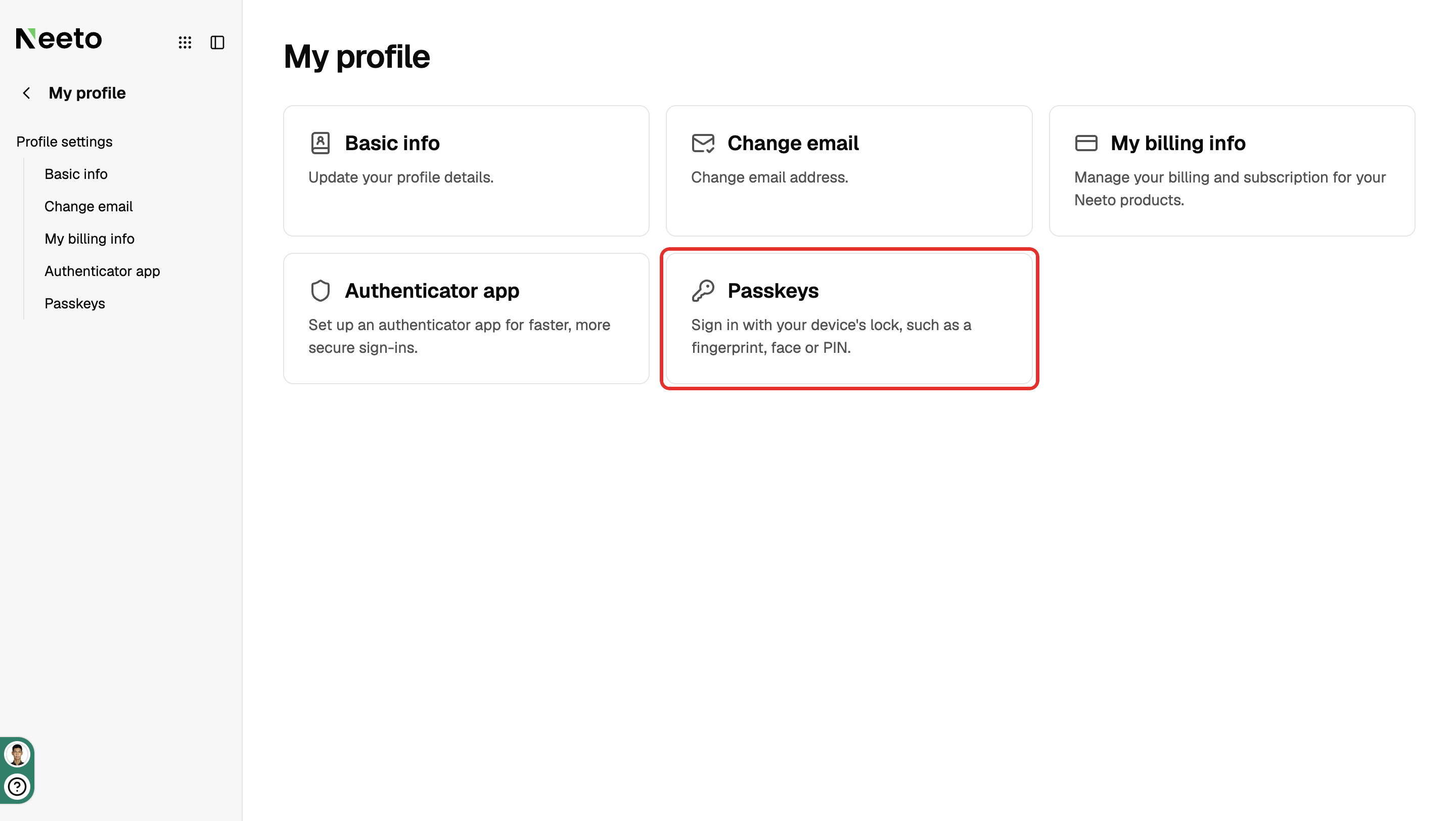
Go to NeetoAuth by visiting your-subdomain.neetoauth.com and log in as usual. Open My profile and click the Passkeys card.
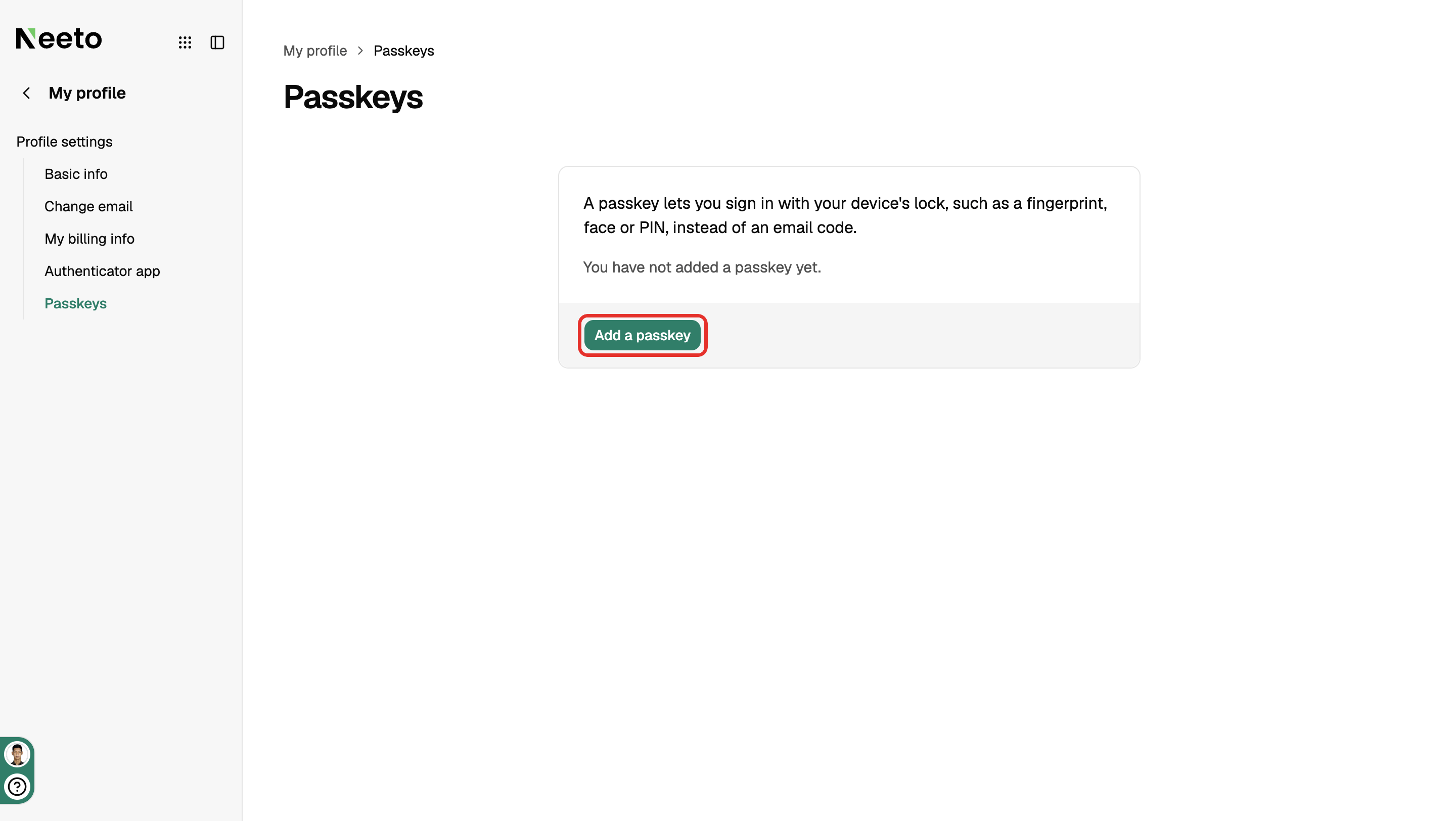
Step 2: Click "Add a passkey"
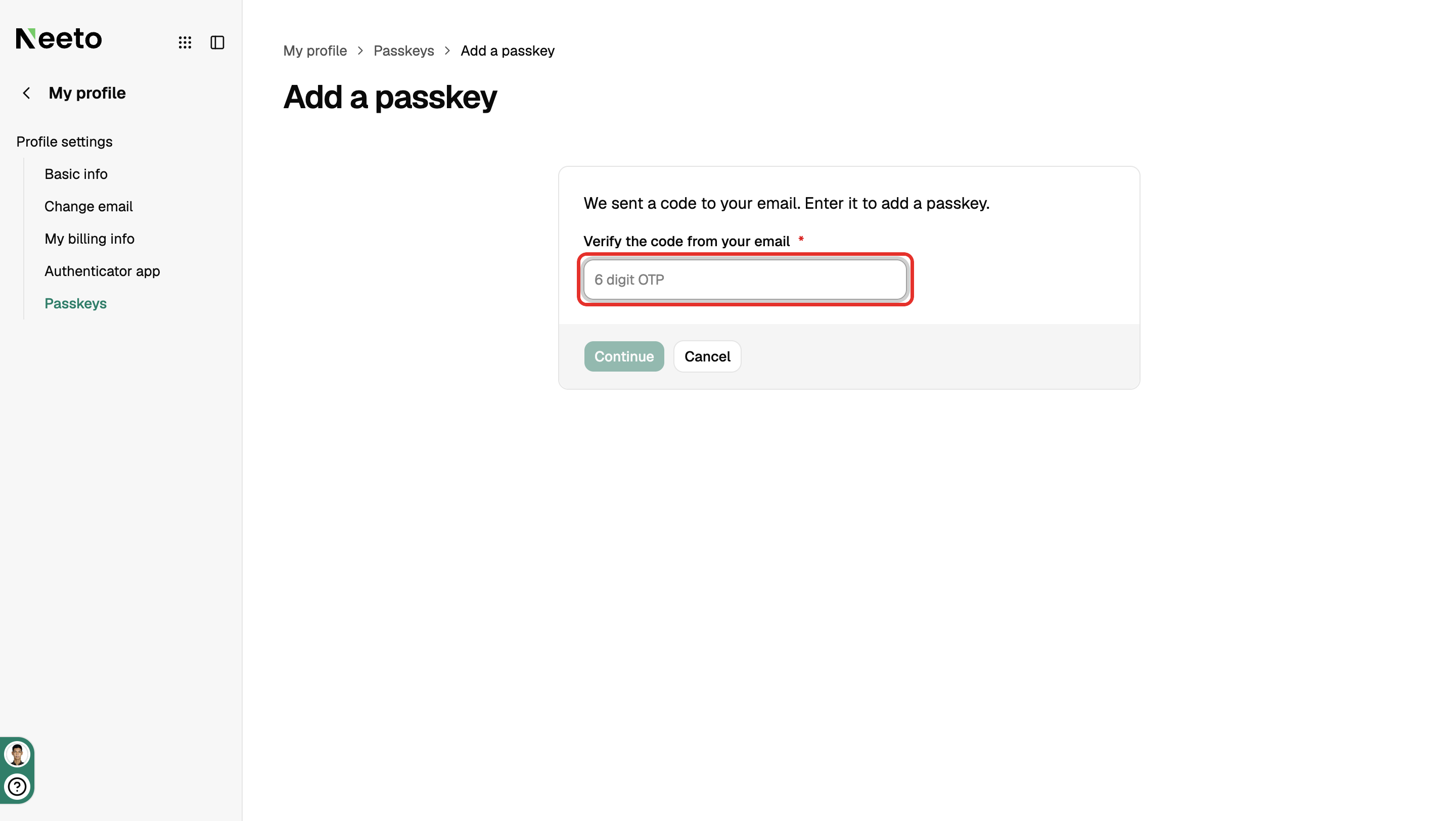
Step 3: Enter the code from your email
We send a 6 digit code to your email. Type it into the box. The next step starts on its own once all 6 digits are in.
Step 4: Unlock with your device
Your device asks you to confirm it's you. Use your fingerprint, your face or your PIN, the same way you unlock your device.
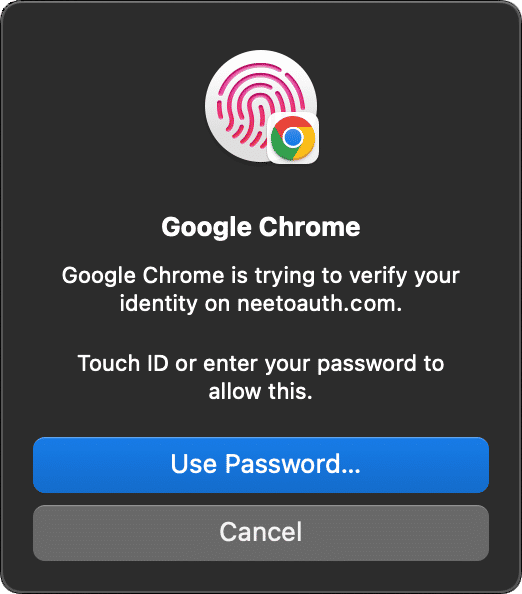
This prompt looks different on every device and browser. On a phone you may see your face unlock or fingerprint prompt. On Windows you may see Windows Hello.
Step 5: You're done
Your passkey now shows in the list. The name tells you where it is saved, for example "Chrome on Mac".
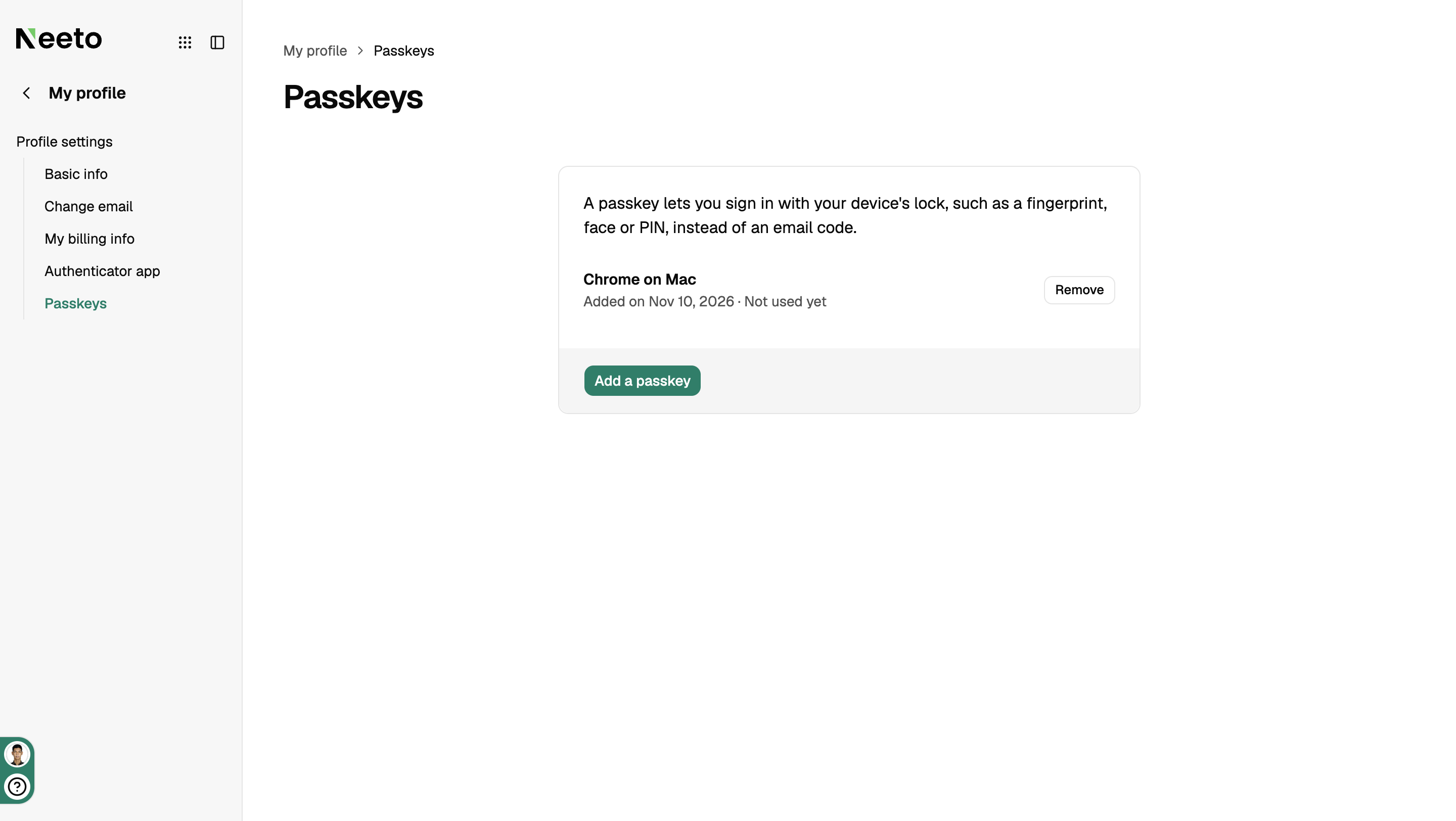
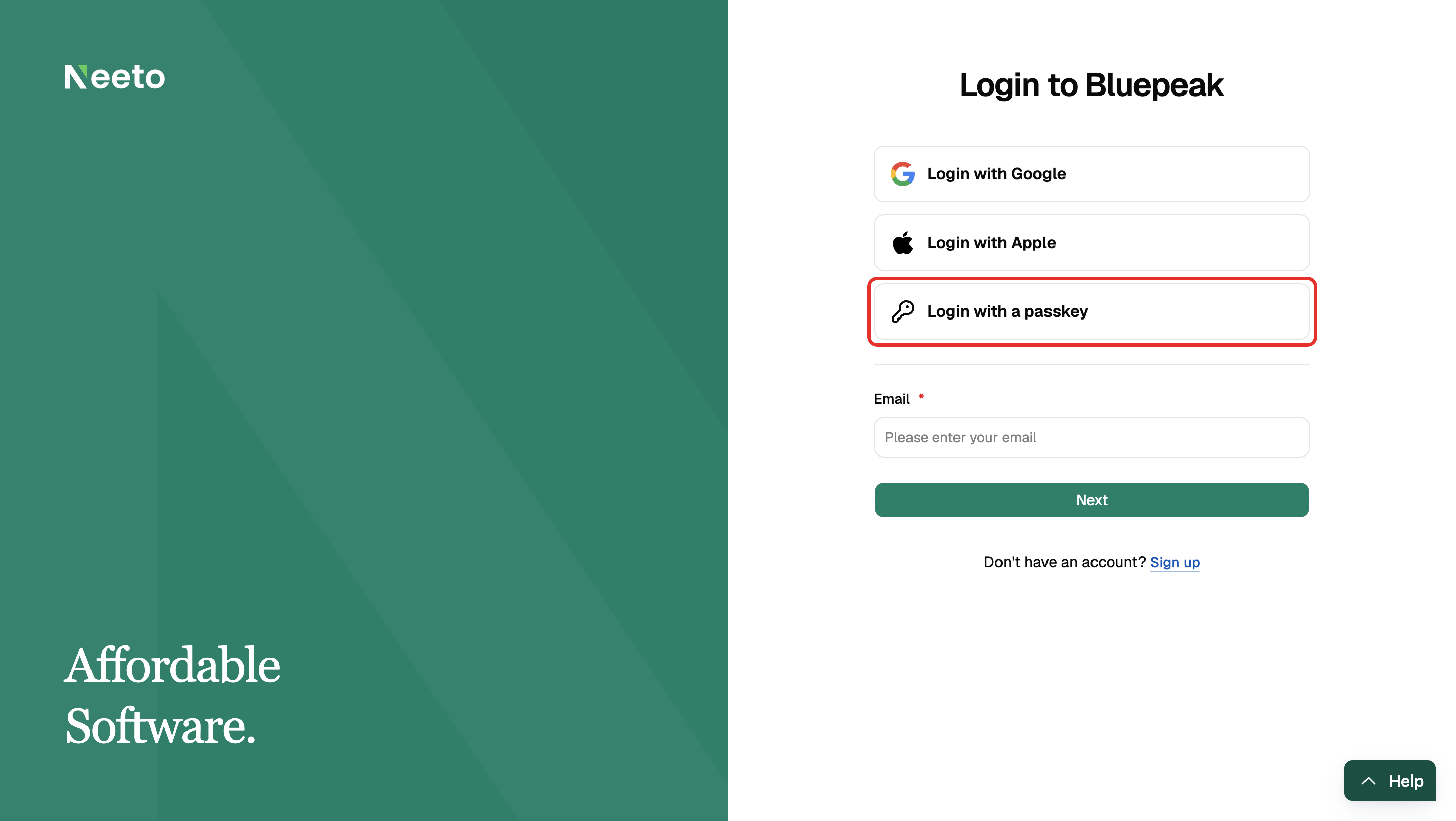
Logging in with your passkey
Go to
your-subdomain.neetoauth.com.Click Login with a passkey.
Your device asks you to unlock it. Use your fingerprint, your face or your PIN.
You're logged in. No email code needed.
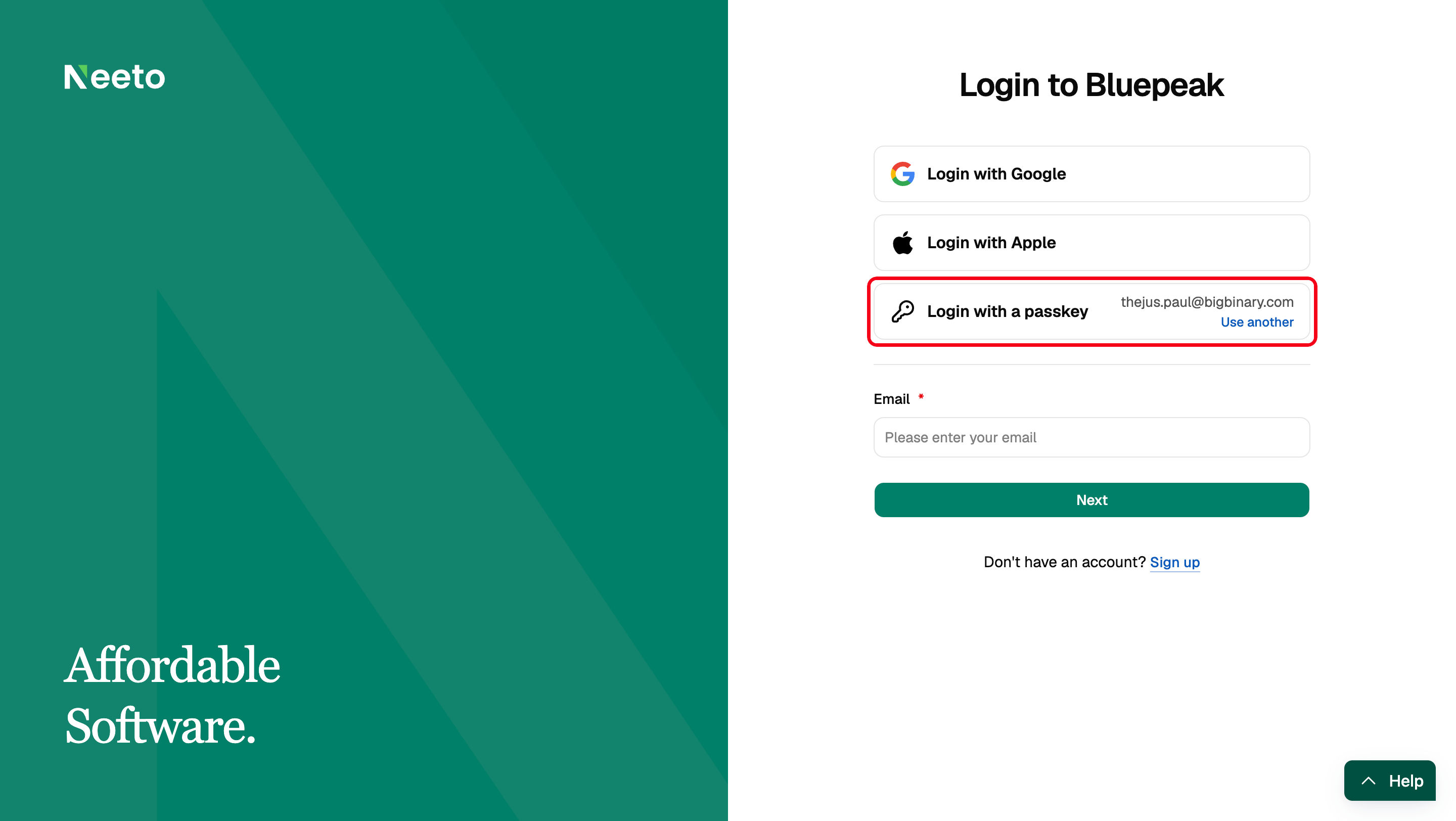
After the first time, the button also shows your email address. If you share the device and want to log in as someone else, click Use another.
Removing a passkey
Open My profile and click the Passkeys card.
Click Remove next to the passkey.
Click Remove again to confirm.
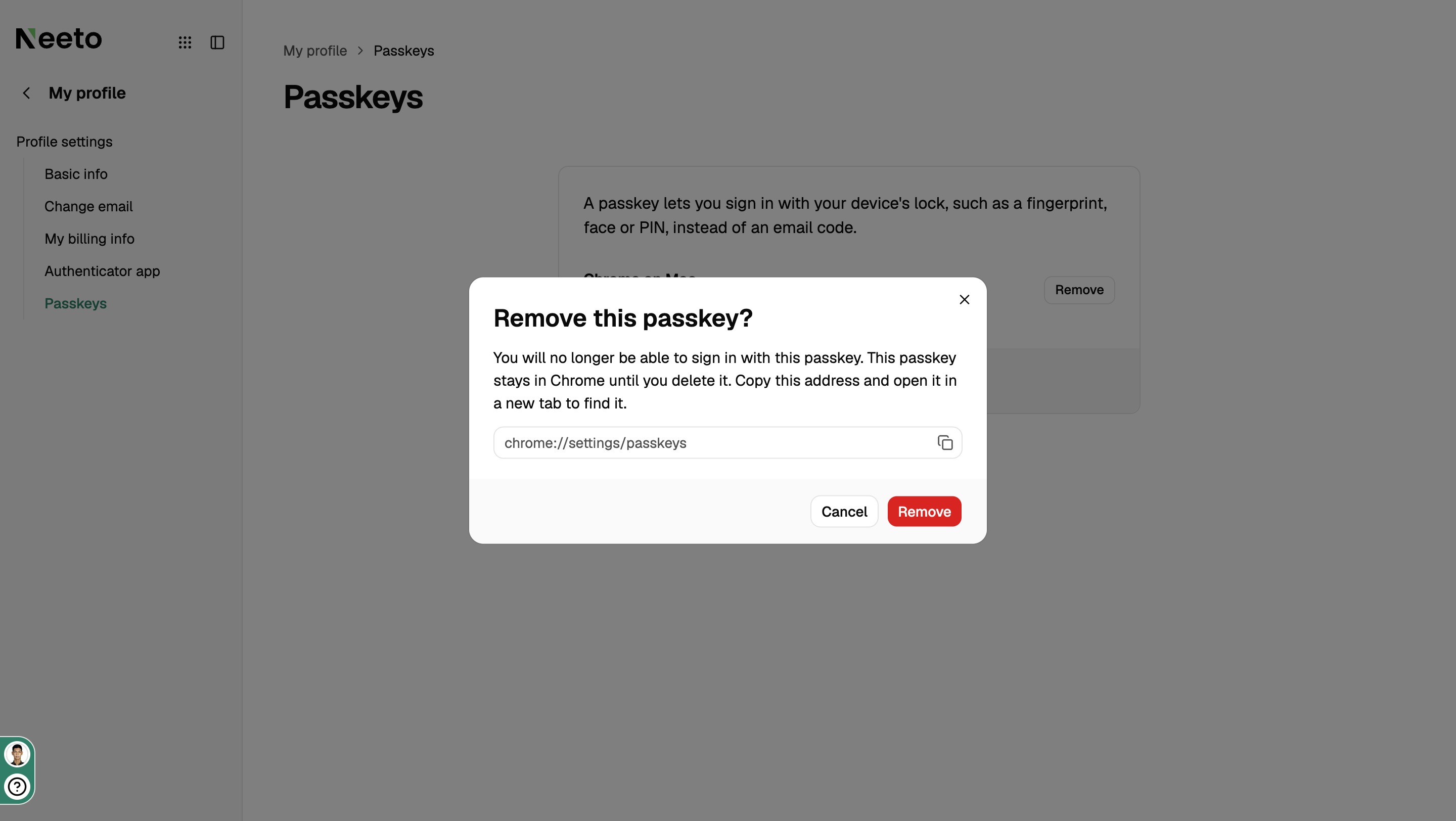
You can no longer log in with that passkey. It is still saved on your device until you delete it there too. If you use Chrome on a Mac, the dialog shows an address you can copy and open in a new tab to find it.
Tips and troubleshooting
I see "The passkey request was cancelled or timed out. Please try again."
The device prompt was closed or not answered in time. Click Login with a passkey again and answer the prompt. Keep the browser window in front while you do this.
I didn't get the email code.
Check your spam folder. If it still isn't there, click Cancel and then Add a passkey again to get a new code.
Can I add more than one passkey?
Yes. Add one on each device you use, for example your laptop and your phone.
I lost my device. Can I still log in?
Yes. Log in with the email code as usual, then remove the passkey for the lost device from your profile.
Do I still need my email code?
Only once, when you add a passkey. After that you can log in with the passkey. Logging in with an email code still works too.